Get the phone app
Install Tari Studio on your phone or computer, turn on notifications, and share photos straight to the Studio.
- 1. Why install it
- 2. Install on Android
- 3. Install on iPhone and iPad
- 4. Install on a computer
- 5. Notifications on your phone
- 6. Share photos and clips to the Studio
- 7. Shortcuts, updates and no connection
- 8. Removing the app
Why install it
Tari Studio installs straight from the website, with no app store. Once installed it:
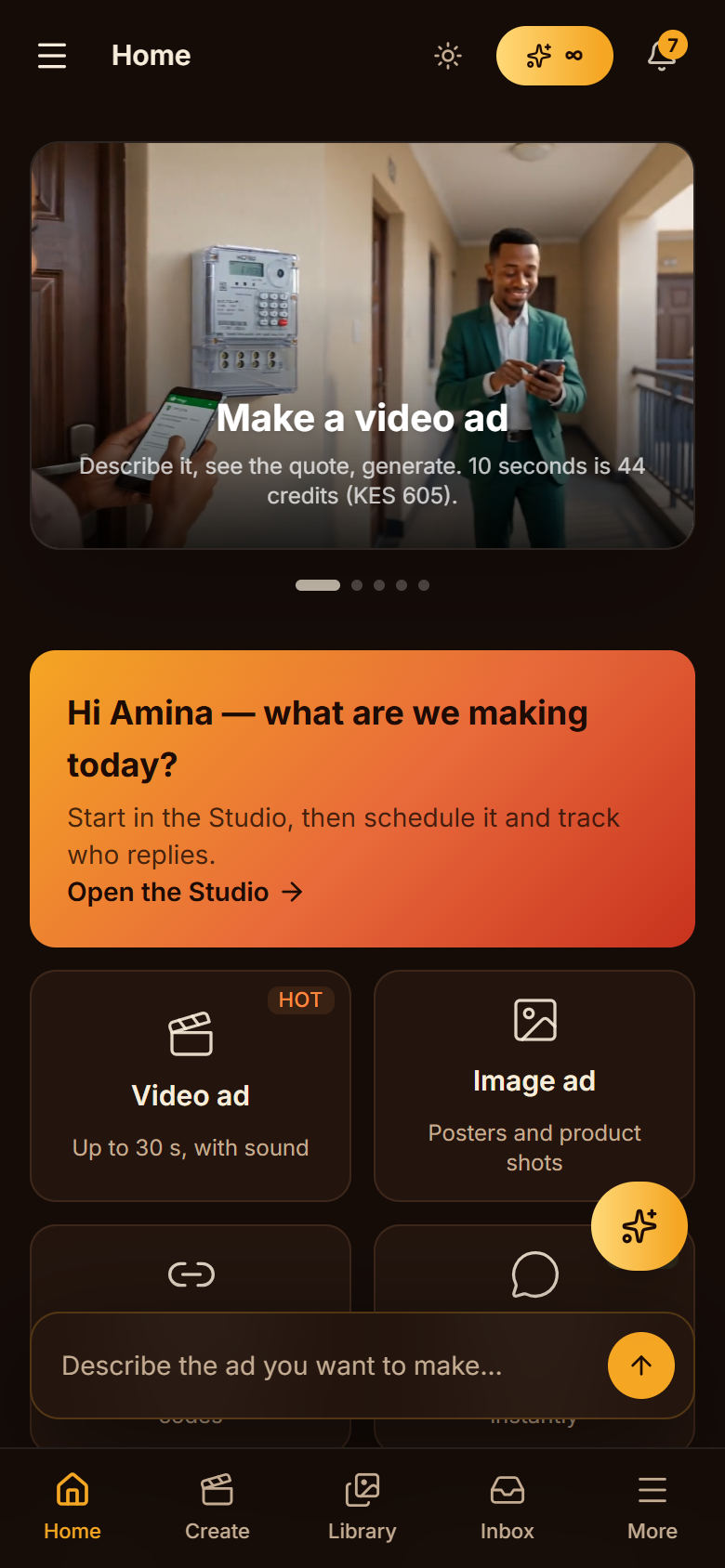
- opens full screen from its own icon, with tabs at the bottom for Home, Create, Library and Inbox
- tells you when a video is ready, a payment lands or a customer request comes in, even with the app closed
- takes pictures, clips and voice files from your gallery with Share, straight into a new Studio project
- opens quickly on slow networks, because the app's own files stay on the phone
Your work is never stored on the phone: projects, results and messages stay on our servers, so you see the same thing on every device.
Install on Android
Open the website in Chrome, Samsung Internet or Edge and sign in. Then either:
- tap Install on the "Get the Tari Studio app" card on Home, or
- tap More at the bottom, then Install app at the end of the menu, or
- open the browser menu (the three dots) and tap Install app or Add to Home screen.
The icon appears with your other apps. Open it from there from now on.
Install on iPhone and iPad
Open the website in Safari and sign in, then:
- Tap Share (the square with an arrow pointing up).
- Scroll down and tap Add to Home Screen, then Add.
- Open Tari Studio from its new icon.
Notifications on iPhone and iPad need iOS 16.4 or later, and work only in the app opened from the Home Screen, not in a Safari tab.
Install on a computer
In Chrome or Edge, click the install icon at the right of the address bar, or Install app at the bottom of the menu on the left. It opens in its own window and shows up with your other programs.
Notifications on your phone
Open Profile, then Notifications on this phone, and tap Turn on notifications. Allow them when the phone asks, then tap Send a test to see one arrive.
Every notification on the bell also comes to the phones you turned on: finished and failed generations, payments, new custom requests, reminders and alerts. Email and SMS are chosen separately, per event, just below.
The list under the button shows every phone and browser getting your notifications. Remove any you no longer use. Signing out turns notifications off on that phone, so a shared phone never shows the next person yours; turn them on again after you sign back in.
Share photos and clips to the Studio
On Android, with the app installed: open your gallery or WhatsApp, choose up to 10 pictures, clips or voice files, tap Share, and pick Tari Studio. The Studio opens a new project with the files attached and any shared text in the box, ready for you to describe what you want.
The Studio takes PNG, JPEG and WebP pictures up to 10 MB, MP4 clips up to 100 MB and 30 seconds, and WAV audio up to 20 MB and 30 seconds. See Attach photos, clips and audio for what each kind of file does.
iPhone does not offer installed web apps in the Share menu yet. There, attach files with the paperclip in the Studio.
Shortcuts, updates and no connection
Press and hold the app icon for shortcuts: Create, Library, Inbox and Notifications.
When we release a new version, the app shows A new version of the app is ready. Tap Reload when you are not in the middle of something.
With no connection the app says so and tries again by itself when you are back online. Nothing you already sent is lost, and generations keep running on our servers while you are offline.
Removing the app
Press and hold the icon and choose Uninstall (Android) or Remove App (iPhone). To stop notifications without removing it, use Turn off on this phone in Profile, or remove the phone from the list there from another device.