Characters, templates and AI pictures
Keep a person or a look consistent, and make their pictures with AI after seeing the cost.
Characters
Under Characters, add a person or mascot with a specific description of how they look and act, and up to six pictures. Pick them in the Studio and their description goes into the prompt.
Make pictures with AI
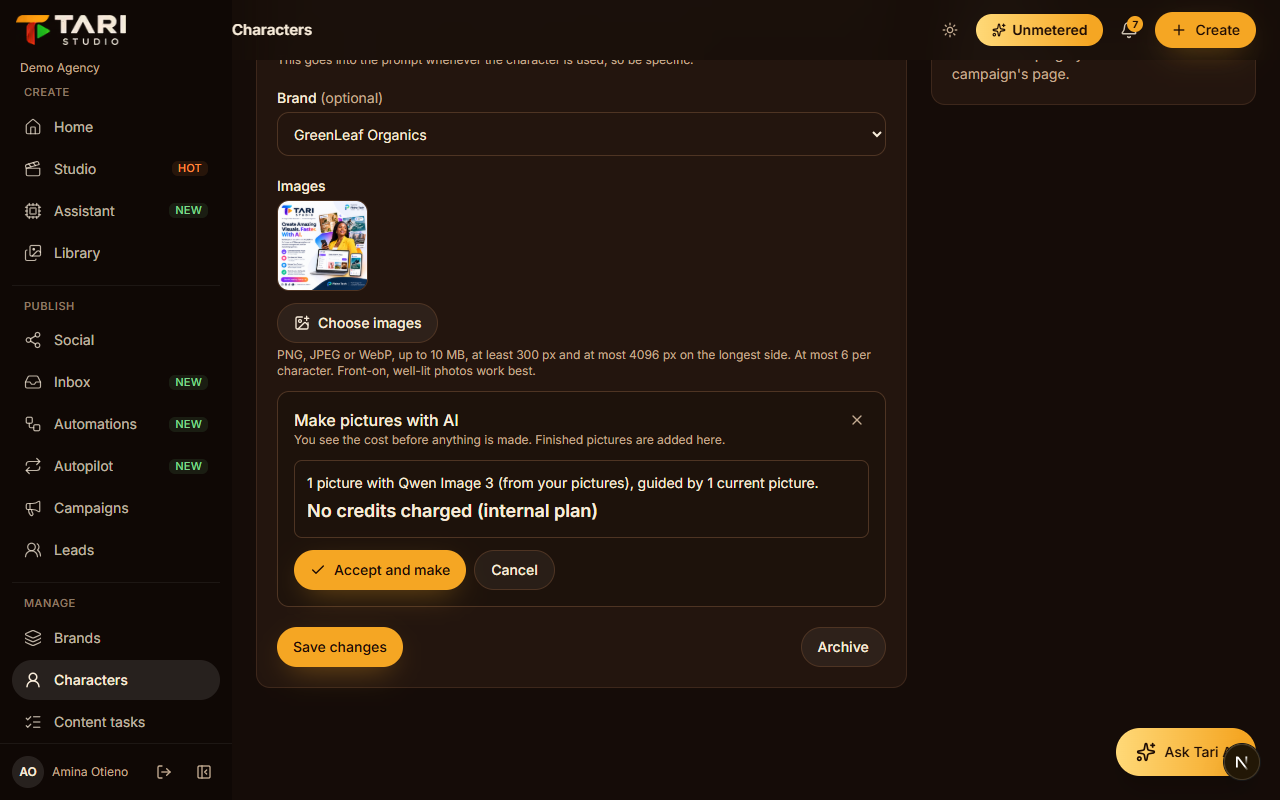
On a character, or on one of your templates, press Make pictures with AI:
- Describe the picture.
- Choose how many (1 to 4), the shape, and the language of any words in it.
- For a character with pictures, leave Keep this character's look ticked: the current pictures guide the new ones so the face stays the same.
- Press See the cost. You see the credits, your balance and the model.
- Press Accept and make, or Cancel. Nothing is charged before you accept.
Finished pictures are added automatically: up to 6 per character and 24 per template. Your plan may make one at a time; the cost box says so.
Templates
Templates are reusable looks your team starts from. A template's text can include slots like {{brand}}, {{product}} and {{idea}} that fill in from what you pick in the Studio. Keep a template private to your team or share it publicly once its pictures are yours to share.